Hey, I love professors as much as the next Information Security guy working for a University, but sometimes they do silly things. When we first started using Microsoft System Center Configuration Manager (SCCM) to manage our machines we encountered one of those silly things. We had created an Operating System Deployment (OSD) task sequence and advertised it to a collection of computers. When the advertisement went out, a small bubble notification showed up on people's computer telling them that software was available. One of our professors clicked on that and saw our OSD task sequence. The professor then proceeded to ignore all the warnings about lost data and ran the task sequence. He was shocked when his computer rebooted itself and reinstalled everything.
Our response to this was to turn off program notification across the board to make sure this didn't happen again. That of course created other problems when we actually WANTED to notify users about programs or restart options.
But now after scouring the Internet, a solution has presented itself. And since it took me more than 15 minutes to find it, I feel obligated to put the answer on my blog for others to see. So here is how you can advertise a task sequence to all your computers without bubbles showing up and without risk of the users running the task sequence from Run Advertised Programs.
Step 1, create your task sequence and save it. Then right-click on the task sequence and go to Properties. On the advanced tab, select the options so that the task sequence can only run on some flavor of operating system that you're not planning to deploy. Since we only use task sequences to push Windows 7 and Windows XP, I selected Windows Server 2003 64 bit.
Step 2, advertise your task sequence to collections that are full of end user workstations. The machines will get the advertisement and reject it because they aren't running Windows Server 2003 64 bit.
The magic that makes this work is that when you use PXE to boot your machines or if you use boot media to start your task sequence, it ignores the operating system settings that we did in step one. Thus you can pxe boot a machine and see the OSD task sequences, but you don't have to worry about end users accidentally running one of them from Run Advertised Programs.

Showing posts with label SCCM. Show all posts
Showing posts with label SCCM. Show all posts
Friday, July 9, 2010


Friday, June 5, 2009
Pointsec for PC: Failed to load osdgina.dll
I ran into a problem today that I hadn't seen yet and I'd like to share it with you. I was asked to uninstall Pointsec from a laptop that had been encrypted when it wasn't supposed to be. Obviously this is a rare occurrence, but it was proper so I went ahead and removed Pointsec. After the reboot, I couldn't log into Windows. Instead of the normal log in screen, I had an error message.
OK, this was a new one for me. I started by doing some digging on what osdgina.dll is. As soon as I knew what osdgina.dll is, I knew what the problem was. We use Microsoft System Center (formerly SMS) to image our workstations, and Pointsec is installed as part of the imaging process. When a computer is being imaged by SCCM, the normal gina (msgina.dll) is replaced with osdgina.dll. In this case, OSD stands for Operating System Deployment. The osdgina.dll makes it so that the computer can boot up and finish the imaging tasks without having users on the system. You could think of it like single user mode in UNIX. When Pointsec installs, it first backs up the registry setting for the current GINA, which is normally msgina.dll, but since it is in the OSD environment, the value is osdgina.dll. Then Pointsec installs and changes the active GINA to pssogina.dll.
The logon user interface DLL osdgina.dll failed to load.
Contact your system administrator to replace the DLL
or restore the original dll.
OK, this was a new one for me. I started by doing some digging on what osdgina.dll is. As soon as I knew what osdgina.dll is, I knew what the problem was. We use Microsoft System Center (formerly SMS) to image our workstations, and Pointsec is installed as part of the imaging process. When a computer is being imaged by SCCM, the normal gina (msgina.dll) is replaced with osdgina.dll. In this case, OSD stands for Operating System Deployment. The osdgina.dll makes it so that the computer can boot up and finish the imaging tasks without having users on the system. You could think of it like single user mode in UNIX. When Pointsec installs, it first backs up the registry setting for the current GINA, which is normally msgina.dll, but since it is in the OSD environment, the value is osdgina.dll. Then Pointsec installs and changes the active GINA to pssogina.dll.
Everything works fine and life goes on. But when I uninstalled Pointsec from this machine, the uninstaller removed pssogina.dll and replaced the registry entry that pointed to osdgina.dll (which is no longer present on the machine). When the computer rebooted it looked for osdgina.dll and couldn't find it, thus the error message.
The Fix:
Now that I knew what the problem was, I knew how to fix it. I took out my trusty BartPE disk and booted the computer using that. Once I was in the Bart environment, I fired up regedit.exe. When regedit comes up, you're looking at the registry for the Bart environment, not the registry on the hard drive. To edit the hard drives registry, you have to import a hive and point it at the hard drives registry file. The registry entry for the GINA is in HKLM\Software\Microsoft\Windows NT\CurrentVersion\Winlogon. So in regedit, I selected the HKEY_USER folder and clicked File -> Load Hive. Then I pointed regedit to the file c:\windows\system32\config\software. That file is the HKLM\Software tree of the registry. It asked me to give that a name, and of course I chose BlackFist.
So then I navigated to HKEY_User\BlackFist\Microsoft\Windows NT\CurrentVersion\Winlogon and sure enough, the value of the GinaDLL entry was osdgina.dll. I changed this back to msgina.dll and rebooted.
Success. I hope this helps if there is anyone else out there that is using Microsoft System Center to image their computers and install Pointsec. I know that I can't be the only one.
Monday, November 24, 2008
Pointsec for PC: Using SCCM to Upgrade (part 3)
After reading through the first two parts of this discussion, I decided to add a third part. This time I'm going to talk about how I got the values that I plugged into my shrinking collection from part one. After all, we have no guarantee that the next version of Pointsec will use the same string and that could make life tough for us if we don't know how to do this.
First I had to remote desktop into the Microsoft System Center Configuration Manager (SCCM) server and open up Microsoft SQL Server Management Studio. From there I navigated to Databases, SMS_Site Name, Tables, dbo.SoftwareProduct. How did I know that it would be in that table? I didn't know for sure, but I had a pretty good idea. When I run resource explorer against a computer I saw a software product category and it knew what version of Pointsec was on the machine. I thought I would look for a table with a similar name and I hit pay dirt. From here I right-clicked on the table and selected 'Open Table' just to see what the entries looked like. This seemed similar to the stuff I saw in Resource Explorer. From that table I clicked on the button to show the SQL pane and ran this query:
Armed with this new information you should be able to create shrinking collections for the next version of Pointsec to come out, or any other software that you want to manage this way. Hope it helps.
First I had to remote desktop into the Microsoft System Center Configuration Manager (SCCM) server and open up Microsoft SQL Server Management Studio. From there I navigated to Databases, SMS_Site Name, Tables, dbo.SoftwareProduct. How did I know that it would be in that table? I didn't know for sure, but I had a pretty good idea. When I run resource explorer against a computer I saw a software product category and it knew what version of Pointsec was on the machine. I thought I would look for a table with a similar name and I hit pay dirt. From here I right-clicked on the table and selected 'Open Table' just to see what the entries looked like. This seemed similar to the stuff I saw in Resource Explorer. From that table I clicked on the button to show the SQL pane and ran this query:

SELECT ProductNameThat showed me that it was showing up in the database as "Pointsec PC". Not "Pointsec for PC", "Pointsec" or anything like that. Then I ran another query to find out what version was being kept in the database.
FROM SoftwareProduct
WHERE (ProductName LIKE '%point%')
SELECT ProductId, CompanyName, ProductName, ProductVersion, ProductLanguageThat was how I knew that the version string that I wanted to look for was "Version 6.3.1 HFA4." If I hadn't gone looking through the database like this, I might have searched for something similar but not correct, such as "6.3.1 HFA4" without the word 'version' in it.
FROM SoftwareProduct
WHERE (ProductName LIKE '%Pointsec PC%')
Armed with this new information you should be able to create shrinking collections for the next version of Pointsec to come out, or any other software that you want to manage this way. Hope it helps.
Friday, November 21, 2008
Pointsec for PC: Using SCCM to Upgrade (Part 2)
In part one of this topic I talked about how to create a shrinking collection in Microsoft System Center Configuration Manager (formerly known as System Management Server). The collection will give you a list of every computer that is running Pointsec, but not the specific version that you want them to run. In other words, you now have a list of machines that need to be upgraded. In this post we'll talk about how to create your upgrade program and deploy it to that collection.
I'm not going to spend a whole lot of time talking about how you put your software onto the Configuration Manager server and create a software package for it. Honestly, that kind of work should be done by your Systems Administrator and it should be fairly basic for anyone that uses Configuration Manager with any frequency. Instead I'd like to talk about the program that you would create to run the update.
Navigate to your Pointsec package in Software Distribution -> Packages. Expand the package you've created for Pointsec and right-click on Programs. Select New -> Program from the menu. The New Program Wizard will appear.
Name this program Upgrade. If you're a fan of the movie Idiocracy you can name the program Upgrayedd with two D's for a double dose of his pimping. The command line for this program is going to be 'msiexec.exe /i "pointsec for pc.msi" REINSTALLMODE=vomus REINSTALL=ALL REBOOT=ReallySuppress /q". I like to run this program hidden, but that isn't completely necessary if you don't mind your users seeing what's going on.
As you click through the wizard, I like to make sure that the program can run whether or not a user is logged on, and that it runs with administrative rights. I also clear the check box to allow users to interact with the program.
Now that you've created the program, make sure you push it out to your Configuration Manager Distribution Points. Click on the program and select Distribute -> Software. Follow the wizard to push your program out to all of the necessary distribution points.
Got that done? OK. Let's advertise your program to the collection that we created in part 1. Right-click on the collection and select Distribute -> Software. Click next to start the Wizard and then select an existing software package. Select your Pointsec package and click next. Later in the Wizard it will ask what program you want to distribute. Select Upgrade or Upgrayedd for a double dose of his pimping. Click Next. I usually take the default name that the wizard provides. On the next screen it will ask if you want to distribute to subcollections. We didn't create a subcollection so your answer here will not matter. On the next screen, do not give the advertisement an expiration date.
It is the next screen where the magic happens. We want to create a mandatory assignment, that way all of our machines will be upgraded to the freshest version of Pointsec. Generally speaking, you should not tell Configuration Manager to ignore maintenance windows unless you really want to have a bad day. Click finish to advertise your program.
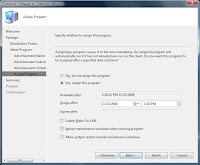
Now check back the next day and you should see that there are fewer computers in your shrinking collection. Sweet.
Hey, I wasn't planning to originally, but I've added a part 3 to this post that you might want to check out.
I'm not going to spend a whole lot of time talking about how you put your software onto the Configuration Manager server and create a software package for it. Honestly, that kind of work should be done by your Systems Administrator and it should be fairly basic for anyone that uses Configuration Manager with any frequency. Instead I'd like to talk about the program that you would create to run the update.
Navigate to your Pointsec package in Software Distribution -> Packages. Expand the package you've created for Pointsec and right-click on Programs. Select New -> Program from the menu. The New Program Wizard will appear.
Name this program Upgrade. If you're a fan of the movie Idiocracy you can name the program Upgrayedd with two D's for a double dose of his pimping. The command line for this program is going to be 'msiexec.exe /i "pointsec for pc.msi" REINSTALLMODE=vomus REINSTALL=ALL REBOOT=ReallySuppress /q". I like to run this program hidden, but that isn't completely necessary if you don't mind your users seeing what's going on.
As you click through the wizard, I like to make sure that the program can run whether or not a user is logged on, and that it runs with administrative rights. I also clear the check box to allow users to interact with the program.
Now that you've created the program, make sure you push it out to your Configuration Manager Distribution Points. Click on the program and select Distribute -> Software. Follow the wizard to push your program out to all of the necessary distribution points.
Got that done? OK. Let's advertise your program to the collection that we created in part 1. Right-click on the collection and select Distribute -> Software. Click next to start the Wizard and then select an existing software package. Select your Pointsec package and click next. Later in the Wizard it will ask what program you want to distribute. Select Upgrade or Upgrayedd for a double dose of his pimping. Click Next. I usually take the default name that the wizard provides. On the next screen it will ask if you want to distribute to subcollections. We didn't create a subcollection so your answer here will not matter. On the next screen, do not give the advertisement an expiration date.
It is the next screen where the magic happens. We want to create a mandatory assignment, that way all of our machines will be upgraded to the freshest version of Pointsec. Generally speaking, you should not tell Configuration Manager to ignore maintenance windows unless you really want to have a bad day. Click finish to advertise your program.

Now check back the next day and you should see that there are fewer computers in your shrinking collection. Sweet.
Hey, I wasn't planning to originally, but I've added a part 3 to this post that you might want to check out.
Monday, November 10, 2008
Pointsec for PC: Using SCCM to Upgrade (Part 1)
This is going to be a two part update because it is long enough that I just don't want to put it all into a single posting. I'll make sure to put a link in for the 2nd part once I've written it. EDIT: Later on I added a part 3 to this series.
So here is the deal. When we first started testing Pointsec in our environment we were on version 6.1, and as time has gone on we have released clients with just about every version of software in between. As a result, even though we have more machines running 6.3.1 HFA4 than any other version, most of our clients are still not running HFA4. I needed a way to quickly identify these machines and hopefully upgrade them. I decided that using Microsoft System Center Configuration Manager (SCCM) was the way to go on this one.
For this particular job, I decided to use a collection that would shrink as the software was installed on the machines. I've seen several names for collections like this: negative collections, inverse collections, and subselect collection. In this first part of this topic, I'm going to discuss how I created the collection.
The first step in creating a shrinking collection is to create a query of the machines that are actually running the correct software. So I opened up my Configuration Manager Console and went down to queries. I created a new query called Pointsec 6.3.1 HFA4, and clicked the edit queries button. On the General tab, I set the output to be distinct (omit duplicate rows) by clicking the checkbox. Then I added a result by clicking the yellow star and selected only System.Name.
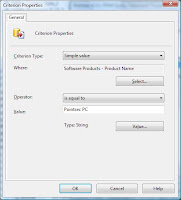
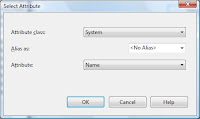 Next I moved over to the criteria tab and clicked the yellow star again. This time I want a simle value, Software Products - Product Name and I want it to be equal to "Pointsec PC." Right now this will give me any machine that has Pointsec on it.
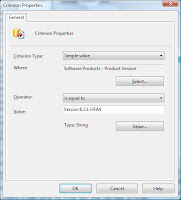
Now click the yellow star again, and this time we will set Software Products - Product Version to be equal to "Version 6.3.1 HFA4". Click through the rest of the wizard or just say OK if you're modifying an existing query. Now if you click on the query, you should get a list of all the machines that have Pointsec for PC version 6.3.1 HFA4 installed.
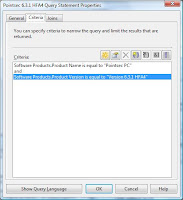
The next step in this process is to create another query. This time we're going to look for all the machins that have Pointsec installed but that are not listed in our first query. Start the process of creating a new query. Once again we want to eliminate duplicate rows and return System.Name just as above. Move over to the criteria tab. The first criteria is going to be the same as above, Software Products - Product Name = "Pointsec PC." The second criteria is where the magic happens. The criterion type is going to be Subselected values. Set where to be System.Name and the operator to "is not in" and click the browse button. Find and select the first query that you created above. Finish the wizard and you've got a query of all the machines that are running Pointsec for PC, but not the latest version. These are the machines that need to be updated.
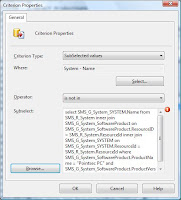
Now we can create a collection for them. Go up to collections, right-click and select New Collection. Give it a name and click Next. On this page, click the yellow query button and select Import Query Statement. You should be able to find the 2nd query that you created in the list. Now click through the rest of the wizard. Voila, you've now got a collection that you can advertise to. As the version of Pointsec is updated on these machines, they will disappear out of the collection and you're only viewing the list of work waiting to be done.
In the next installment, I'll talk about how to create an upgrade program for Pointsec and how to advertise that to your new shrinking collection.
So here is the deal. When we first started testing Pointsec in our environment we were on version 6.1, and as time has gone on we have released clients with just about every version of software in between. As a result, even though we have more machines running 6.3.1 HFA4 than any other version, most of our clients are still not running HFA4. I needed a way to quickly identify these machines and hopefully upgrade them. I decided that using Microsoft System Center Configuration Manager (SCCM) was the way to go on this one.
For this particular job, I decided to use a collection that would shrink as the software was installed on the machines. I've seen several names for collections like this: negative collections, inverse collections, and subselect collection. In this first part of this topic, I'm going to discuss how I created the collection.
The first step in creating a shrinking collection is to create a query of the machines that are actually running the correct software. So I opened up my Configuration Manager Console and went down to queries. I created a new query called Pointsec 6.3.1 HFA4, and clicked the edit queries button. On the General tab, I set the output to be distinct (omit duplicate rows) by clicking the checkbox. Then I added a result by clicking the yellow star and selected only System.Name.
 Next I moved over to the criteria tab and clicked the yellow star again. This time I want a simle value, Software Products - Product Name and I want it to be equal to "Pointsec PC." Right now this will give me any machine that has Pointsec on it.
Now click the yellow star again, and this time we will set Software Products - Product Version to be equal to "Version 6.3.1 HFA4". Click through the rest of the wizard or just say OK if you're modifying an existing query. Now if you click on the query, you should get a list of all the machines that have Pointsec for PC version 6.3.1 HFA4 installed.


The next step in this process is to create another query. This time we're going to look for all the machins that have Pointsec installed but that are not listed in our first query. Start the process of creating a new query. Once again we want to eliminate duplicate rows and return System.Name just as above. Move over to the criteria tab. The first criteria is going to be the same as above, Software Products - Product Name = "Pointsec PC." The second criteria is where the magic happens. The criterion type is going to be Subselected values. Set where to be System.Name and the operator to "is not in" and click the browse button. Find and select the first query that you created above. Finish the wizard and you've got a query of all the machines that are running Pointsec for PC, but not the latest version. These are the machines that need to be updated.

Now we can create a collection for them. Go up to collections, right-click and select New Collection. Give it a name and click Next. On this page, click the yellow query button and select Import Query Statement. You should be able to find the 2nd query that you created in the list. Now click through the rest of the wizard. Voila, you've now got a collection that you can advertise to. As the version of Pointsec is updated on these machines, they will disappear out of the collection and you're only viewing the list of work waiting to be done.
In the next installment, I'll talk about how to create an upgrade program for Pointsec and how to advertise that to your new shrinking collection.
Thursday, October 2, 2008
Operating System Deployment: Gethostbyname failed!
This may not be the most security related item that will get posted on this blog, but I have a theory that if I can't find the answer to something after about 15 minutes of searching the Internet, then it is my duty to put that information on the Internet.
I have been involved in a project with our Microsoft System Center Configuration Manager (SCCM) administrator to deploy operating system images over the network. The process is called Operating System Deployment (OSD). We were having a strange problem where some of our task sequences would work in one VLAN, but not in another. In the cases where the task sequence would fail, there would be an error in the log file that said GetHostbyName failed. Of course this lead us to look at our name resolution, but we simply weren't finding the answer.
Ultimately we noticed that we couldn't resolve the name of the SCCM server if we used just the NetBIOS name (not the fully qualified domain name). Turns out that on the SCCM server, in the IP configuration, we had not specified a WINS server. I have to be honest, I thought that WINS was dead technology and I didn't expect that System Center 2007 R2 was going to need that, but after we made the change things started working for us even in the VLANs where it didn't work before.
Now I still cannot answer why it was working in some VLANS and not others. All I know is that making this change has improved our situtation, and if you came here searching for that error then hopefully it makes life better for you too.
By the way, in case you're wondering why a security manager is working on operating system deployment, it has to do with quality assurance. I believe that risk management and quality assurance are the peanut butter and jelly of information security. By improving the quality of our imaging process we can ensure that more of our computers leave the door with the latest patches in place. This in turn improves our endpoint security and reduces our risk.
I have been involved in a project with our Microsoft System Center Configuration Manager (SCCM) administrator to deploy operating system images over the network. The process is called Operating System Deployment (OSD). We were having a strange problem where some of our task sequences would work in one VLAN, but not in another. In the cases where the task sequence would fail, there would be an error in the log file that said GetHostbyName failed. Of course this lead us to look at our name resolution, but we simply weren't finding the answer.
Ultimately we noticed that we couldn't resolve the name of the SCCM server if we used just the NetBIOS name (not the fully qualified domain name). Turns out that on the SCCM server, in the IP configuration, we had not specified a WINS server. I have to be honest, I thought that WINS was dead technology and I didn't expect that System Center 2007 R2 was going to need that, but after we made the change things started working for us even in the VLANs where it didn't work before.
Now I still cannot answer why it was working in some VLANS and not others. All I know is that making this change has improved our situtation, and if you came here searching for that error then hopefully it makes life better for you too.
By the way, in case you're wondering why a security manager is working on operating system deployment, it has to do with quality assurance. I believe that risk management and quality assurance are the peanut butter and jelly of information security. By improving the quality of our imaging process we can ensure that more of our computers leave the door with the latest patches in place. This in turn improves our endpoint security and reduces our risk.
Tuesday, September 23, 2008
Deploying Pointsec for PC with Microsoft System Center
One of the projects that I've been involved with at my organization is using Microsoft System Center to image our workstations. Up until now we've been using static Ghost images. After a few months our images are out of date and need to be updated, but those updates often do not happen. The main reason why is that we have several different roles that a machine might be in, and several different models of machine that could fill each roll. Several x Several = Too Many Ghost Images to Maintain.
One of the major road blocks that we've encountered is deploying Pointsec for PC as part of the Operating System Deployment process. The main reason this isn't working, I would assume, is because the Pointsec installer needs to have the ability to interact with the desktop in order to install. Even if you run the MSI in super secret silent mode (msiexec /i REBOOT=ReallySuppress /qn) you still have to have that ability for the MSI to run. So every time that we've put this into an Operating System Deployment Task Sequence, it has failed. Until today...
I should point out that I am doing this with Pointsec for PC 6.3.1 HFA4. I do not know if this will work with earlier versions, and in fact I can tell you that I've had nothing but failure in my attempts to do this with earlier version. We're also using Microsoft System Center 2007, not SMS. I do not know if this will work with SMS.
The first thing you have to do is create your silent installation profile. I'm not going to go into detail on how to do that here. You've got all kinds of documentation that comes with the software that will tell you how to do it. Maybe I'll put together something someday, but not in this post. Now take your silent installation profile and put it in the 1_Pointsec for PC folder with the MSI.
At this point, if you were to double-click the MSI, you would (sort of) silently install Pointsec. Now take all of these files and put them in a folder on your distribution point. It's time to open up Configuration Manager Console and create the package.
 In Confiuration Manager Console, expand Computer Management, Software Distribution, and right-click on Packages. Select New Package from the menu. In the new package wizard, fill in the appropriate information and click Next. On the next page, provide the wizard with the path to your source files (in other words, the place you copied the files to on the distribution point). The click next and accept all the defaults for the rest of the wizard. You should now have a package for Pointsec. Expand the package and right-click on Programs. Select New Program from the menu.
 In the new program wizard, give the program a name. I'm going to call my Task Sequence so that I know this is the one I'm using for Operating System Deployment. The command line that you want to use is the super silent installation line: msiexec.exe /i "pointsec for pc.msi" REBOOT=ReallySuppress /q. Also make sure that you're running this hidden. You can put in whatever you want for the Category. Click Next.
Pointsec requires about 100 MB of disk space, so that's what I usually put in, and I give it 30 minutes to run. It shouldn't really take that long, but I figure that 30 minutes gives it plenty of time to install but you wont sit there forever if there is a problem. I don't bother listing the operating systems that it can run on in the program. Click Next.
On the Environment screen, make sure that the program can run whether or not a user is logged on. Do not check the box that allows the user to interact with the program. Click Next
On the Advanced page, make sure you click the check box to suppress program notifications. Click Next and take the defaults for the rest of the wizard.
Now under programs you should see your Task Sequence program. I don't know for sure if you need to advertise the program to any collections, but I don't think I did. Let's go to our Task Sequence now.
I'm not going to describe the whole process for creating a task sequence for Operating System Deployment. Once you've got that part down, the Pointsec installation is pretty simple. Edit your task sequence and click Add -> General -> Install Software. Give this part a name (I called it install Pointsec). Click the button to install a single application. Browse to the Pointsec package you created. The wizard will fill in the Program for you, unless you have multiple programs that silently install (for example, I also have an upgrade program). Select your task sequence program. Click apply and you're done.
I've tested this on two machines running Windows Vista and two machines running XP. I also feel that I should point out that this process doesn't appear to be supported by Checkpoint. Looking through the release notes it looks like they only support installing when the program is given interact with the desktop ability. Your mileage may vary, but this is working for me.
One of the major road blocks that we've encountered is deploying Pointsec for PC as part of the Operating System Deployment process. The main reason this isn't working, I would assume, is because the Pointsec installer needs to have the ability to interact with the desktop in order to install. Even if you run the MSI in super secret silent mode (msiexec /i
I should point out that I am doing this with Pointsec for PC 6.3.1 HFA4. I do not know if this will work with earlier versions, and in fact I can tell you that I've had nothing but failure in my attempts to do this with earlier version. We're also using Microsoft System Center 2007, not SMS. I do not know if this will work with SMS.
The first thing you have to do is create your silent installation profile. I'm not going to go into detail on how to do that here. You've got all kinds of documentation that comes with the software that will tell you how to do it. Maybe I'll put together something someday, but not in this post. Now take your silent installation profile and put it in the 1_Pointsec for PC folder with the MSI.
At this point, if you were to double-click the MSI, you would (sort of) silently install Pointsec. Now take all of these files and put them in a folder on your distribution point. It's time to open up Configuration Manager Console and create the package.
 In Confiuration Manager Console, expand Computer Management, Software Distribution, and right-click on Packages. Select New Package from the menu. In the new package wizard, fill in the appropriate information and click Next. On the next page, provide the wizard with the path to your source files (in other words, the place you copied the files to on the distribution point). The click next and accept all the defaults for the rest of the wizard. You should now have a package for Pointsec. Expand the package and right-click on Programs. Select New Program from the menu.
 In the new program wizard, give the program a name. I'm going to call my Task Sequence so that I know this is the one I'm using for Operating System Deployment. The command line that you want to use is the super silent installation line: msiexec.exe /i "pointsec for pc.msi" REBOOT=ReallySuppress /q. Also make sure that you're running this hidden. You can put in whatever you want for the Category. Click Next.
Pointsec requires about 100 MB of disk space, so that's what I usually put in, and I give it 30 minutes to run. It shouldn't really take that long, but I figure that 30 minutes gives it plenty of time to install but you wont sit there forever if there is a problem. I don't bother listing the operating systems that it can run on in the program. Click Next.
On the Environment screen, make sure that the program can run whether or not a user is logged on. Do not check the box that allows the user to interact with the program. Click Next
On the Advanced page, make sure you click the check box to suppress program notifications. Click Next and take the defaults for the rest of the wizard.
Now under programs you should see your Task Sequence program. I don't know for sure if you need to advertise the program to any collections, but I don't think I did. Let's go to our Task Sequence now.
I'm not going to describe the whole process for creating a task sequence for Operating System Deployment. Once you've got that part down, the Pointsec installation is pretty simple. Edit your task sequence and click Add -> General -> Install Software. Give this part a name (I called it install Pointsec). Click the button to install a single application. Browse to the Pointsec package you created. The wizard will fill in the Program for you, unless you have multiple programs that silently install (for example, I also have an upgrade program). Select your task sequence program. Click apply and you're done.
I've tested this on two machines running Windows Vista and two machines running XP. I also feel that I should point out that this process doesn't appear to be supported by Checkpoint. Looking through the release notes it looks like they only support installing when the program is given interact with the desktop ability. Your mileage may vary, but this is working for me.
Subscribe to:
Posts (Atom)